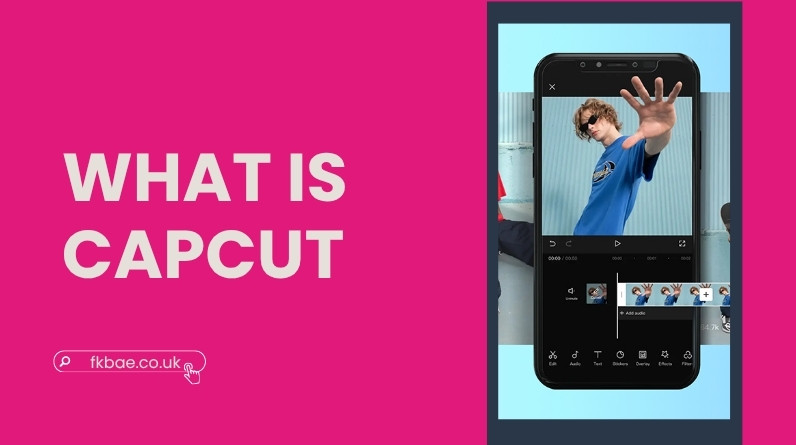
If you’ve ever wondered how people create polished videos for TikTok or Instagram in minutes, you’re not alone. It often looks complicated—but in reality, many creators are using a single tool designed to make editing fast, visual, and nearly effortless.
That tool is CapCut.
But what is CapCut exactly? And is it just another basic video editor, or something more capable?
This guide breaks it down clearly—what it is, how it works, and whether it’s actually worth using.
- Simple explanation of what CapCut is
- Who created it and why it became popular
- How CapCut works in real editing workflows
- Key features explained in plain language
- Free vs Pro differences (real value)
- Best use cases and practical applications
- Pros, limitations, and comparisons
- Common beginner mistakes
- FAQs with real answers
What Is CapCut?
CapCut is a free video editing app that lets you create, edit, and share videos using built-in tools, templates, and AI features. It’s designed to make video editing accessible—even if you’ve never touched a timeline before.
What CapCut Is Designed For
CapCut is built primarily for short-form content. That means videos for platforms like TikTok, Instagram Reels, and YouTube Shorts—vertical, fast-paced, and made to hold attention within the first few seconds.
Rather than focusing on complex timelines and professional workflows, CapCut prioritises speed, simplicity, and ready-made effects. You can go from raw clips to a finished video in minutes, which is exactly what most social media content demands.
Who Created CapCut and Why It Became So Popular
The Company Behind It
CapCut is developed by ByteDance, the same company behind TikTok. This connection is a significant reason for its growth—CapCut integrates naturally with TikTok’s ecosystem, making it easier to create content that fits the platform’s style and trends.
Why CapCut Grew So Fast
CapCut didn’t become popular by accident. It fits precisely into how content is created today:
- Templates make it easy to replicate viral trends without starting from scratch
- Built-in effects stay updated to match what’s trending on social media
- It’s free, and—unlike most competitors—exports without a watermark even on the free plan
- Seamless sharing to TikTok and other platforms with minimal steps
In simple terms, CapCut removes the technical barrier. You don’t need editing skills—you just need an idea. If you’re looking for tools that help you manage and repurpose TikTok content alongside CapCut, SnapTik offers a useful way to download and save TikTok videos for reference or remixing.
How CapCut Actually Works (Real Workflow)
Step-by-Step Process
- Import your video clips or photos
- Place them on the timeline
- Edit (trim, cut, rearrange)
- Add effects, text, music, or templates
- Export and share your video
Real Example
Imagine you record a 10-second clip on your phone. In CapCut, you can:
- Trim the boring parts
- Add subtitles automatically
- Apply a trending filter
- Insert music from the library
Within a few minutes, you have a ready-to-post video. This is why CapCut works so well for everyday creators—it matches the speed at which content moves today.
Key Features of CapCut (Explained Simply)
Basic Editing Tools
These are the essentials:
- Cut and trim clips
- Adjust speed (slow motion or fast, from 0.1x to 100x)
- Split and rearrange footage
- Freeze frames for emphasis in tutorials or reaction content
These tools are straightforward but powerful enough for the vast majority of everyday videos.
Visual Effects and Templates
CapCut offers ready-made templates that automatically apply transitions, timing, and effects. Filters are updated regularly to reflect what’s currently trending—so you’re not stuck working with outdated styles.
This is one of its biggest advantages. Instead of building a video from scratch, you can use a template and just swap in your own content. It’s a genuine time-saver, especially when trends move fast.
AI-Powered Tools
This is where CapCut has made the most noticeable progress.
- Auto captions: generates subtitles instantly from spoken audio—useful for accessibility and sound-off viewing
- AI Auto-Edit: processes your raw footage through scene recognition and quality scoring, then assembles a polished edit with colour correction, audio levelling, and transitions automatically
- Background removal: removes or replaces backgrounds without green screen equipment
- Text-to-video: creates video sequences from written prompts
- Keyframe animation: lets you animate position, scale, rotation, and effects over time for more dynamic visuals
These tools reduce the manual work that typically slows creators down, making them particularly valuable when you’re producing content on a regular schedule.
Audio Features
- Access to millions of music clips and sound effects
- Record voiceovers directly in-app
- Reduce background noise automatically
- Extract audio from existing video clips
Good audio is often what separates a watchable video from one that gets skipped, and CapCut gives you enough control to get it right without needing a separate tool.
CapCut Free vs Pro – What’s the Real Difference?
| Feature | Free Version | Pro Version |
|---|---|---|
| Basic editing tools | Yes | Yes |
| Templates & effects | Limited | Full access |
| Watermark on exports | None | None |
| Export quality | Up to 1080p | Up to 4K 60fps |
| AI tools | Limited (monthly usage caps) | Advanced (unlimited) |
| Cloud storage | Limited (1 GB) | Expanded |
Is CapCut Pro Worth It?
One thing worth knowing: unlike most free video editors, CapCut’s free plan does not add a watermark to your exports. For casual creators, that alone makes the free version genuinely usable.
If you’re creating content regularly or for business—and especially if you need 4K exports or unlimited AI Auto-Edit runs—Pro becomes a practical upgrade. There’s also a Team plan available for organisations that need multiple users collaborating on the same projects.
What Is CapCut Used For? (Real-World Use Cases)
Social Media Content
Most people use CapCut to create content for TikTok, Instagram Reels, and YouTube Shorts. The app’s 9:16 vertical format support and platform-specific templates make it well-suited for this. If you regularly work with Instagram content, understanding how to download and repurpose Instagram Reels can complement your CapCut editing workflow.
Marketing and Business Videos
Small businesses use CapCut to create ads, product demos, and promotional clips without hiring a video editor. Paired with a clear strategy around YouTube advertising, short-form video content produced in CapCut can extend your reach beyond organic social media.
Personal Projects
It’s also popular for vlogs, travel videos, and documenting everyday moments. The key advantage here is speed—you can produce something polished without spending hours in an editor.
Pros and Limitations of CapCut
Advantages
- Very easy to learn, even without prior editing experience
- Free to start, with no watermark on exports
- Fast editing workflow suited to regular content production
- Expanding AI toolkit that handles time-consuming tasks automatically
Limitations
- Can lag or slow down with large or complex projects
- Less precise control than professional desktop software
- Heavy reliance on templates can make content feel similar to other creators’ work
CapCut is capable—but it’s not designed to replace high-end editing tools for broadcast or cinematic production work.
CapCut vs Other Video Editing Apps
CapCut vs TikTok Editor
The TikTok editor handles quick in-app edits well enough, but CapCut offers significantly more control—more effects, better AI tools, and the ability to work across multiple platforms rather than just one.
CapCut vs Professional Software
Professional tools like Premiere Pro or DaVinci Resolve offer more precision, more advanced colour grading, and deeper customisation. The trade-off is a steeper learning curve and considerably more setup time.
CapCut sits in the middle—capable enough for most short-form and mid-level content, simple enough that you’re not spending more time learning the tool than making videos.
Who Should Use CapCut?
- Beginners getting started with video editing
- Content creators focused on social media
- Social media marketers and small business owners
Who Might Not Benefit
- Professional video editors who need frame-level control
- Large-scale production workflows requiring multi-user project management at scale
Common Mistakes Beginners Make
Overusing Effects
Too many effects stacked on top of each other tend to look chaotic rather than polished. A single, well-placed transition usually does more than five competing ones.
Ignoring Export Settings
Exporting at the wrong resolution or frame rate can noticeably reduce quality, especially on platforms that compress video further. It’s worth checking these settings before hitting export every time.
Not Optimising for Platform
Each platform has its own preferred format, aspect ratio, and ideal video length. Ignoring these doesn’t just affect aesthetics—it can hurt how the algorithm distributes your content.
Is CapCut Safe to Use?
CapCut is used by millions of creators globally and is generally safe for everyday video editing. As with any app developed by a company that handles media uploads and cloud storage, it’s sensible to review which permissions you’re granting—particularly around access to your camera roll and cloud sync settings.
If you’re editing sensitive or proprietary content, keeping projects local and turning off automatic cloud backup is a reasonable precaution. For personal and everyday content, most users find the default settings completely fine.
Frequently Asked Questions
Is CapCut completely free?
Yes. The free version includes most essential editing tools and—notably—exports without a watermark, which makes it more useful than most free editors. A paid Pro version adds advanced AI features, 4K exports, and expanded cloud storage.
Can CapCut replace professional editors?
For social media and short-form content, it handles the job well. For high-end production work, broadcast, or film, professional tools still offer more control and precision.
Does CapCut work on PC and mobile?
Yes—it’s available on iOS, Android, desktop (Windows and Mac), and via browser, so you can pick up where you left off across devices.
Why is CapCut so popular?
It combines simplicity, a growing AI toolset, and tight integration with social platforms—all without charging you upfront or marking your exports.
Is CapCut good for YouTube videos?
Yes, particularly for YouTube Shorts and shorter content. It can also handle basic long-form videos, though creators producing longer, more complex content may eventually want more advanced software.
Final Thoughts: Should You Use CapCut?
CapCut is one of the most accessible ways to start editing video today. It removes complexity without stripping out capability—and for most creators working on social media content, that balance is exactly right.
If your goal is to produce fast, engaging content without a steep learning curve, it’s a genuinely strong choice. The best way to see that for yourself is simply to try it—within a few minutes, it becomes clear why so many creators keep coming back to it.